

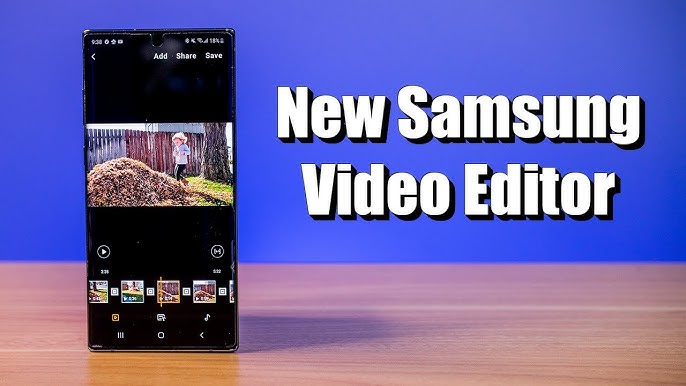
Many users of Samsung Galaxy smartphones are unaware that their devices come with a powerful video editor built right into the default Gallery app. While third-party apps like Adobe Premiere Rush, InShot, and CapCut dominate mobile video editing, Samsung has quietly included a robust editor that offers surprising depth, clean interface, and features suitable for both casual users and creators alike.
This built-in tool offers a balance between ease of use and advanced functionality, removing the need to download additional apps for most day-to-day editing tasks. Once discovered, it often becomes a go-to tool for quick yet impressive video work.
The Evolution of Samsung Native Video Editor
From Basic Trimming to Creative Freedom
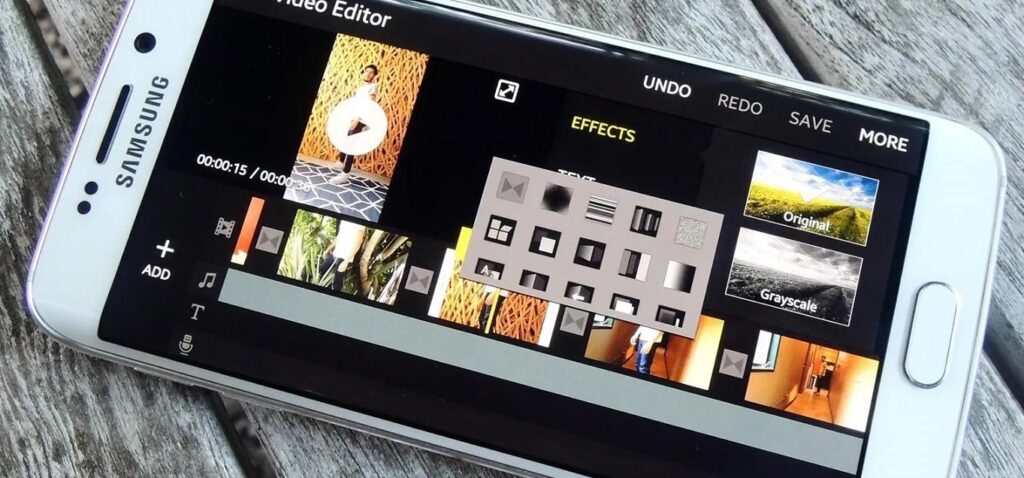
Earlier iterations of Samsung’s video editing features were limited to basic trimming and rotation. Over the past few years, particularly from One UI 3.0 onward, Samsung has revamped its Gallery app to include a full-fledged video editing suite. The updates reflect a significant shift in focus toward empowering creators on the go.
Integration With One UI Ecosystem
Samsung’s One UI has evolved into a comprehensive interface that emphasizes usability, customization, and productivity. The video editor’s integration into this ecosystem means it not only looks consistent but also works seamlessly with other Samsung apps like Notes, Samsung Cloud, and Samsung DeX.
Where to Find the Editor: No Downloads Required
Access Via the Gallery App
To locate this hidden editor, simply open any video in Samsung’s Gallery app. Tap the pencil icon at the bottom of the screen. What appears next is not just a trimming tool—it is a multi-layer video editor with numerous capabilities.
Compatibility Across Devices
Most recent Galaxy devices including the S-series, Z Fold/Flip series, Note series, and even many A-series models come equipped with this feature. The experience may vary slightly depending on the version of One UI, but core functions remain consistent.
Feature Breakdown: Tools That Rival Paid Apps
Trimming and Splitting with Precision
Samsung’s editor allows frame-accurate trimming and splitting. This means users can isolate key moments, cut out unwanted footage, and rearrange clips without losing quality. The interface supports drag-and-drop operations, simplifying timeline management.
Text Overlays and Captions
The app features customizable text tools. You can add multiple lines of styled text anywhere on the video, choose fonts, adjust sizes, change colors, and even animate the appearance of captions. These features are particularly useful for vlogs, tutorials, and social content.
Filters and Color Correction
Dozens of built-in filters are available, each offering a unique visual tone. Additionally, users can manually adjust brightness, contrast, saturation, and shadows to match their desired aesthetic. These options bring near-professional control into your palm.
Background Music and Soundtracks
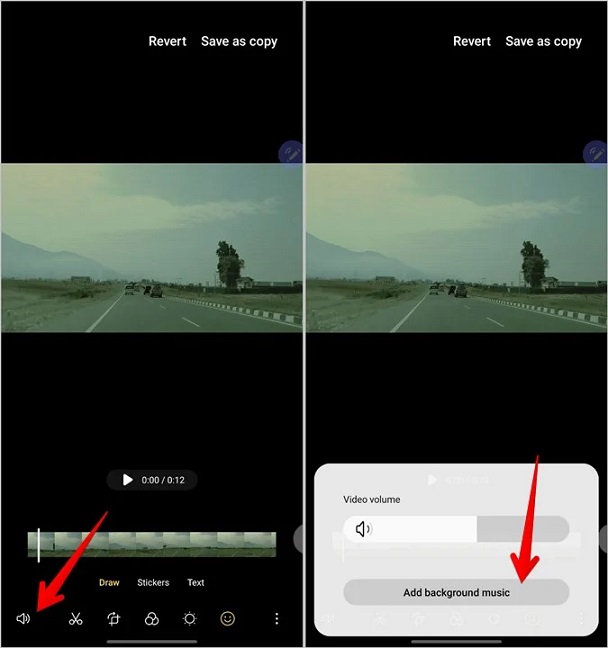
A music tab within the editor allows users to insert background tracks. Samsung includes a collection of royalty-free music categorized by mood (calm, upbeat, dramatic). Users can also import audio files, record voiceovers, or mute sections of the original audio.
Transitions and Clip Merging
Merging clips is not just a matter of attaching them. The editor provides seamless transition effects like fade-in/fade-out, crossfade, and pop transitions that maintain flow and rhythm across cuts. This is especially useful for montages and reels.
Speed Adjustment
Users can slow down or speed up clips, even within a single segment. Variable speed control allows for creative storytelling—such as time-lapse, slow-motion moments, or dramatic reveals—without relying on external apps.
Drawing and Doodling
There is a unique feature that allows users to annotate videos using the S Pen (on supported devices) or finger. This drawing tool supports different brush types, thickness, and colors. It’s perfect for educational content, design previews, or playful edits.
Aspect Ratio Conversion
Videos can be resized for different platforms using preset aspect ratios like 1:1 for Instagram, 16:9 for YouTube, or 9:16 for TikTok. The cropping tool maintains composition while adapting the content to the selected frame.
How It Compares to Popular Third-Party Editors
Samsung Editor vs InShot
While InShot excels in social media optimization and sticker overlays, Samsung’s native editor wins in stability, privacy (no data sharing), and system integration. It lacks some novelty effects but compensates with a cleaner workflow.
Samsung Editor vs Adobe Premiere Rush
Premiere Rush is undoubtedly more feature-rich, especially for professional editors, but it also comes with a subscription cost and steeper learning curve. Samsung’s editor, while not as deep, covers 80% of everyday editing needs—without extra cost.
Samsung Editor vs CapCut
CapCut is known for its viral effects and transitions, which appeal to TikTok creators. Samsung’s editor leans more toward simplicity and elegance. It’s more suited for general-purpose editing, tutorials, presentations, and personal archiving.
Limitations and What’s Missing
No Multi-Layer Timeline
Unlike advanced editors, the Samsung app does not support multiple video tracks or layers. Users cannot place multiple videos side by side or overlay clips on top of one another.
Limited Effects Library
Although it includes basic transitions and filters, the number of effects is far fewer compared to CapCut or PowerDirector. For users looking for wild, animated transitions, external apps might still be necessary.
No Keyframe Animation
While text and objects can be animated, the app does not support keyframing where users could manually control properties frame-by-frame. This limits creative freedom in terms of motion graphics.
Export Resolution Capped
On some models, the export resolution is capped at 1080p even if the original footage is in 4K. While this is sufficient for most platforms, professionals might find it limiting.
Tips and Tricks for Maximum Output
Use Scene Optimizer for Better Footage
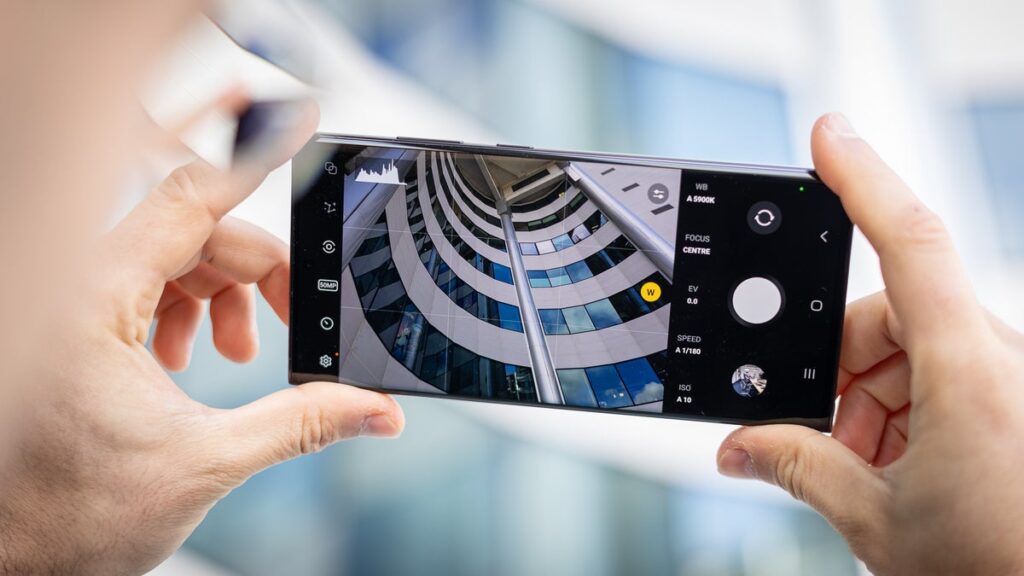
Before editing, shoot video using Samsung’s built-in Scene Optimizer. It enhances contrast, exposure, and focus automatically, making the footage look better out of the box and reducing post-production effort.
Edit in Landscape Mode
Although the app supports both portrait and landscape editing, using it in landscape gives more screen space and timeline visibility, particularly useful for precise cuts and layering elements.
Utilize DeX for Desktop-Style Editing
Samsung DeX allows users to connect their phone to a monitor and edit videos with mouse and keyboard. The video editor is fully functional in DeX mode and closely mimics desktop-level control.
Use Voice Recorder for Narration
For tutorials and vlogs, you can record narration using Samsung’s Voice Recorder app and import it directly into the video timeline. This method ensures better audio quality than in-video narration.
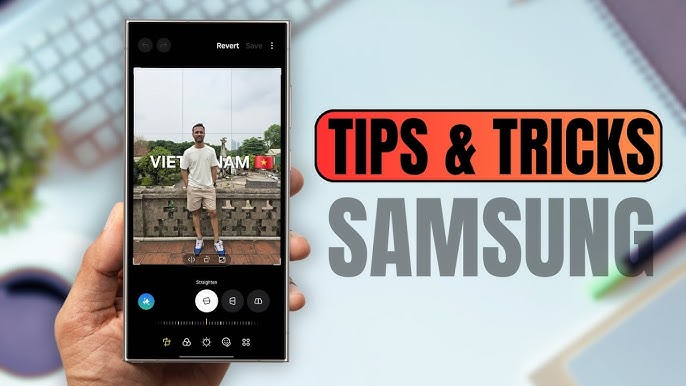
The One UI 6.1 Update: Recent Improvements
Enhanced Audio Controls
Samsung has refined volume mixing between original audio and background music, allowing for better ducking and balance between voice and soundtrack.
AI-Powered Auto Cut
AI features now help suggest clip points and automatically remove blurry or redundant footage. These suggestions are optional but can save significant time.
Live Collaboration on Galaxy Tabs
With Samsung Notes and Galaxy Tabs, users can storyboard, annotate, and script videos collaboratively before editing. This feature supports shared workflows for content teams and educators.
Use Cases: Who Should Be Using Samsung’s Video Editor?
Content Creators on the Go
YouTubers, TikTokers, and Instagrammers can produce polished videos quickly without switching apps or exporting clips repeatedly.
Teachers and Students
For educational content like tutorials, lectures, or assignments, this editor provides all the basic tools needed without overcomplicating the process.
Small Business Owners
Businesses can create product demos, social promos, or event highlights right from their phone—no need to hire a videographer or invest in software.
Parents and Hobbyists
Casual users looking to compile family videos, holiday memories, or school events will find the editor intuitive, powerful, and fun.
Samsung Video Editor vs Google Photos Editor
While Google Photos also has built-in video editing capabilities, Samsung’s offering is far more comprehensive. Google Photos supports basic trimming, filters, and light adjustments, whereas Samsung allows for layered text, multiple clips, background music, and drawing features.
Security and Privacy Considerations
Unlike cloud-based editors, Samsung’s video editor works entirely offline. This ensures privacy, especially for sensitive content. There’s no upload to external servers unless the user shares the final product through cloud apps.
What the Future Could Hold
Multi-Track Support and 4K Export
Future updates could introduce multi-track timelines and full 4K export capability. These additions would bridge the gap between mobile convenience and professional-level performance.
AI-Powered Suggestions for Text and Music
The potential integration of Galaxy AI could further enhance editing with automatic title suggestions, subtitle generation, and soundtrack matching based on video mood or content.
Integration With Samsung Cloud or Google Drive
Seamless cloud syncing of projects would allow for device switching and remote editing, making the process even more dynamic and flexible.
FAQS
Where can I find the built-in video editor on my Samsung Galaxy phone?
You can access the video editor by opening any video in the Gallery app and tapping the pencil icon at the bottom of the screen.
What features does Samsung’s built-in video editor offer?
It includes trimming, splitting, text overlays, filters, music tracks, transitions, speed control, doodling, and aspect ratio adjustments for social media formats.
Is Samsung’s video editor available on all Galaxy devices?
Most recent Galaxy devices running One UI 3.0 or later—including the S, Z, Note, and A series—support the built-in editor, though features may vary slightly by model.
Do I need to download a separate app or pay to use it?
No, the editor is completely free and pre-installed in the Gallery app. It works offline and does not require any downloads or subscriptions.
Can I use the Samsung video editor for professional content creation?
Yes, it’s suitable for YouTube, Instagram, and TikTok content, especially for on-the-go edits. While it may lack advanced layers, it covers most core editing needs efficiently.
Conclusion:
Samsung’s hidden video editor proves that you do not need to download multiple apps or pay subscription fees to edit videos professionally on a smartphone. While it may not replace Adobe Premiere Pro for film professionals, it easily covers the needs of most users and even outperforms many free alternatives.
Its seamless integration into the Galaxy ecosystem, reliable performance, and user-friendly interface make it one of the best-kept secrets on Samsung devices. Whether you are trimming a clip, making a birthday video, or starting a YouTube channel, Samsung’s native video editor might be all you need—hidden in plain sight, yet surprisingly powerful.
