

Getting locked out of streaming content due to your location can feel incredibly frustrating. Whether you’re trying to watch your favorite TV series, access exclusive documentaries, or explore different movie libraries, geo-restrictions limit your access based on your country. This restriction led me to explore a clever DNS workaround. With one simple tweak, I unlocked significantly more content on my smart TV—without compromising internet speed or requiring complicated software.
This solution revolves around a tool called Smart DNS Proxy. It’s fast, efficient, and easy to set up. Unlike VPNs that slow down your network and encrypt all traffic, Smart DNS Proxy targets only the portion of your connection responsible for verifying location—leaving the rest of your data untouched for optimal performance.
Why Streaming Content Gets Blocked
Streaming services like Netflix, Hulu, Amazon Prime, and Disney+ restrict access to certain titles based on licensing agreements. These platforms offer different content libraries for users in the U.S., Europe, Asia, and other regions. That’s why shows available in one country may be missing in another.
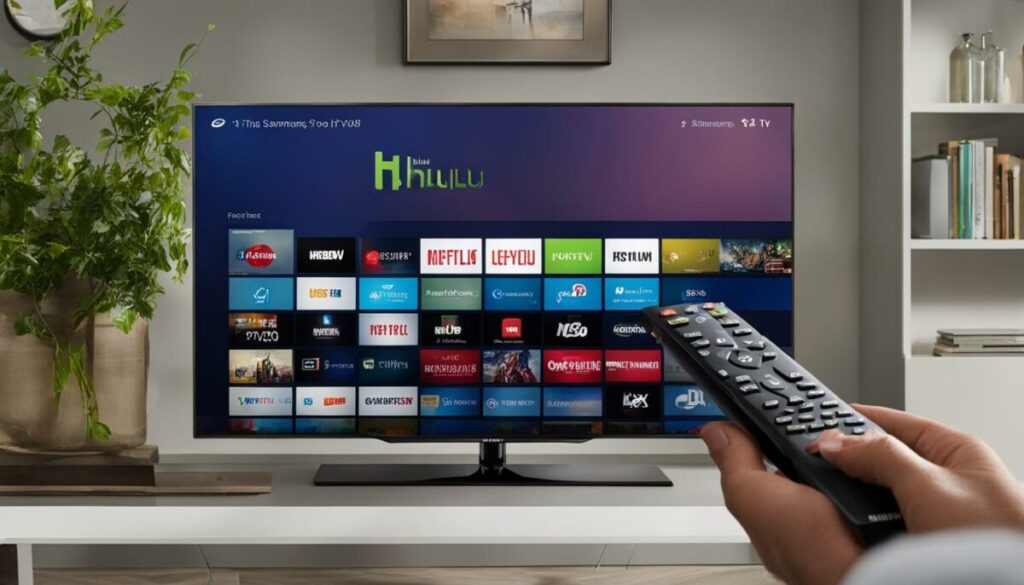
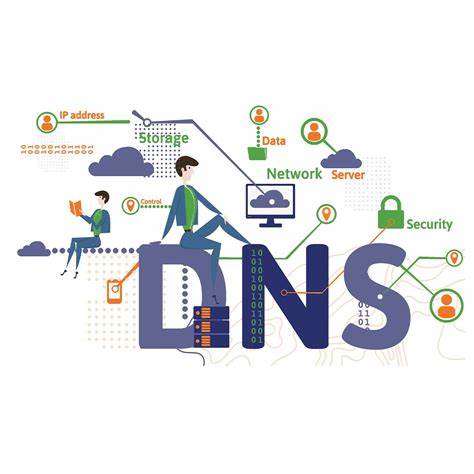
Each time you connect to a streaming service, your smart TV uses a DNS (Domain Name System) request to locate and access the platform. That DNS request reveals your geographical location based on your internet provider, which is then used to grant or block access to content.
This digital barrier led me to search for smarter, faster ways to bypass it without the lag and complexity of VPNs.
What Is Smart DNS Proxy and How It Works
Smart DNS Proxy is a specialized DNS service that redirects only the portion of your traffic responsible for determining your location. When your smart TV tries to resolve a domain like netflix.com, instead of going to your local DNS, it communicates with Smart DNS Proxy’s network. This network responds with data that makes the streaming service think you’re in a region where the content is available.
Your actual IP address remains unchanged, and the video stream itself still comes directly from the original source—this ensures fast streaming speeds without buffering. Unlike VPNs, Smart DNS Proxy doesn’t encrypt your traffic or route everything through an external server. The result? A smoother and faster streaming experience.
Benefits of Using Smart DNS Proxy for Streaming
- High-Speed Streaming – Since it doesn’t encrypt or reroute all data, your video streaming stays fast and buffer-free.
- Easy Region Switching – You can jump between different content libraries (like U.S. Netflix and Japan Hulu) without switching servers or software.
- Device Compatibility – Works on smart TVs, gaming consoles, streaming boxes, and more.
- Minimal Configuration – No apps to install; just configure your DNS manually.
- No Log Policy – While not focused on privacy, Smart DNS Proxy doesn’t track or store your online behavior.
However, keep in mind: Smart DNS Proxy is not a privacy tool. It doesn’t encrypt your internet data or mask your IP address. If your main concern is anonymity or security, a VPN would be the better choice.
How I Set Up Smart DNS Proxy on My Smart TV
Setting it up was surprisingly simple. I used my Google TV, but the process is similar across most smart TV models including Samsung, LG, Sony, and TCL.
Get DNS Server Addresses
I began by signing up on the Smart DNS Proxy website using my PC. After registration, I accessed their list of DNS server addresses. You can choose any pair based on your content region preferences. For instance, I picked:
- DNS 1: 54.64.107.105 (Japan)
- DNS 2: 223.366.64.97 (New Zealand)
Keep the server list tab open as you’ll need it in the next step.
Configure DNS Settings on TV
Using the remote, I opened the Settings menu > Network & Internet > selected my Wi-Fi network > then chose IP Settings. I switched from DHCP to Static IP, enabling me to manually input DNS addresses.
I left the IP Address and Gateway as they were, and updated only the DNS fields:
- DNS 1: 54.64.107.105
- DNS 2: 223.366.64.97
- Step 3: Save and Reboot
After saving the changes, I restarted the smart TV. A reboot is necessary for the new DNS settings to take effect.
Activate on Smart DNS Proxy Website
Once the TV was connected again, I logged in to my Smart DNS Proxy account on my PC. The dashboard showed a check mark next to DNS Setup, confirming activation.
If it doesn’t activate:
- Double-check DNS entries for typos
- Try alternate servers from the list if current ones are offline
Test Streaming Services
I opened Amazon Prime Video to test the configuration. To my surprise, content that was previously geo-blocked was now accessible. Best of all, video playback remained smooth—no buffering, no lag, just more content.
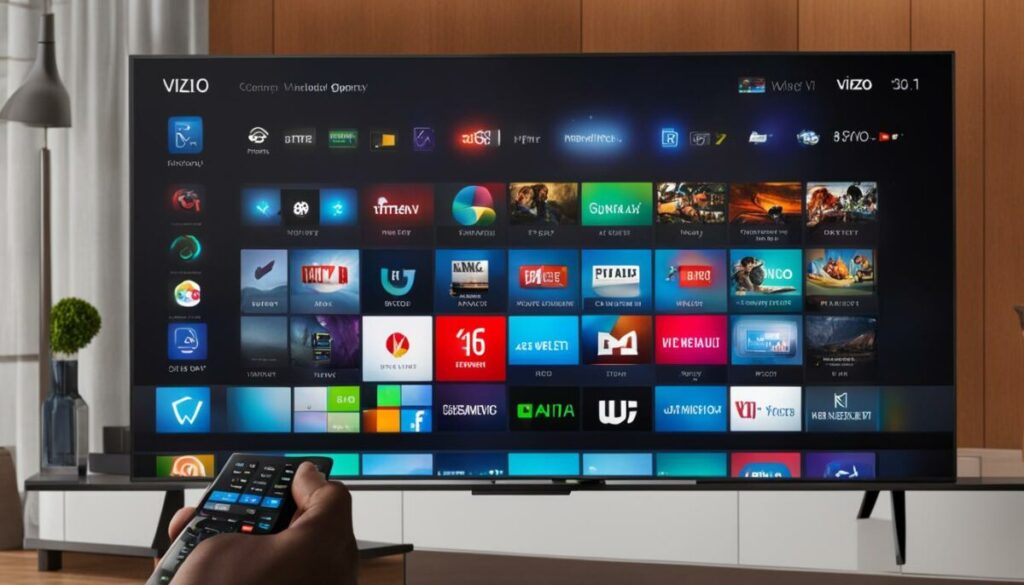
- This small tweak immediately expanded my streaming options and gave me access to previously restricted shows and movies.
- Tips for Best Experience Using Smart DNS Proxy
- Bookmark Your Favorite Regions: Know which server pairs unlock your preferred content.
- Use a Wired Connection: For even better performance, connect your smart TV via Ethernet.
- Clear App Cache: After switching regions, some apps may cache old location data. Clear the cache or reinstall the app if needed.
- Stay Updated: Smart DNS Proxy regularly updates their server list to keep up with streaming platforms’ detection techniques.
Smart DNS vs. VPN: Which Should You Choose?
| Feature | Smart DNS Proxy | VPN |
|---|---|---|
| Speed | Very Fast | Moderate (due to encryption) |
| Privacy | Low | High (with encryption and masking) |
| Device Setup | Manual DNS Input | Requires App or Router Setup |
| Geo-Unblocking | Excellent for streaming | Excellent for both streaming and browsing |
| Ideal For | Streaming content | Privacy + streaming |
If your main goal is unlocking content on your smart TV with zero slowdowns, Smart DNS Proxy is the superior option. But if you need privacy, security, and encryption, go with a premium VPN.
What Content Can You Unlock with Smart DNS Proxy?
Here are just a few platforms that Smart DNS Proxy supports:
- Netflix (U.S., UK, Japan, and more)
- Hulu
- BBC iPlayer
- Disney+
- Amazon Prime Video
- HBO Max
- Peacock TV
You can switch between regions to access unique content libraries—no app installations or device changes needed.
Conclusion
What is Smart DNS Proxy?
DNS service that unlocks geo-blocked content by rerouting only location-verifying traffic from streaming platforms.
Does Smart DNS Proxy slow down streaming?
No. Unlike VPNs, it keeps your internet speed intact by avoiding full traffic encryption.
Is it legal to use Smart DNS for streaming?
Yes, using Smart DNS is legal in most countries, but it may go against streaming services’ terms of service.
Will it work on any smart TV?
Yes. Smart DNS Proxy works with most smart TVs, including Samsung, LG, Sony, and Android TV models.
Can I use it on multiple devices?
Yes. Once configured at the router level, it works for all connected devices, or you can set it up individually.
Do I need to install any software?
No software is required. Just update your DNS settings directly on your TV or router.
Does Smart DNS Proxy hide my IP address?
No. It doesn’t mask your IP or encrypt data. For privacy, consider using a VPN instead.
How do I switch regions?
Simply change the DNS server addresses to ones from your desired region, as listed in your Smart DNS Proxy account.
Final Thoughts
Using Smart DNS Proxy has been a game-changer for my home entertainment setup. It requires only a one-time configuration, doesn’t slow down my connection, and unlocks massive libraries of content. For casual streamers or TV binge-watchers looking to break out of local content restrictions, this DNS trick is one of the easiest and most effective tools available.
